Format Tables
When you connect to object storage, the data in it isn't automatically queryable. You need to format files or folders as tables so that Dremio can query them with SQL. This applies to raw file formats like Parquet, JSON, CSV, XLS, and Excel (XLSX), as well as Iceberg or Delta Lake tables stored directly in buckets without a catalog.
Supported Table and File Formats
| Format | File Limit |
|---|---|
| Apache Iceberg | Unlimited |
| Delta Lake | Unlimited |
| Excel | 10,000 |
| JSON | 300,000 |
| Parquet | Unlimited |
| Text (delimited) | 300,000 |
| XLS | 10,000 |
All files in a folder must be the same format. The names of files and folders cannot include the following special characters: /, :, [, or ].
Format a File or Folder as a Table
To format a file or folder as a table:
-
In the Dremio console, on the Open Catalog page, navigate to the file or folder.
-
Access the format option:
- Folder: Hover over the folder and click
 .
. - File: Hover over the file, click
 , and select Format file.
- Folder: Hover over the folder and click
-
In the settings dialog, for Format, verify that the correct format has been detected.
-
Configure format-specific parameters:
-
Parquet: Select the Ignore other file formats checkbox if desired. If you select this option, Dremio ignores all non-Parquet files in the related folder structure, and the promoted table works as if only Parquet files are in the folder structure.
-
JSON: No additional parameters to configure.
-
Excel (XLSX) and XLS:
Parameter Description Extract column names Check this box to extract the column names from the first line of the file. Expand merged cells Check this box to expand out cells that have been merged in the Excel sheet. Sheet name Specify the sheet name if there are multiple sheets within the file. -
Text (delimited):
Parameter Description Column delimiter Select the delimiter in your text file: Comma, Tab, Pipe, or Custom. For Custom, enter the characters used for a delimiter in the text box. Quote Select the character that is used for quotes in your file: Single Quote, Double Quote, or Custom. For Custom, enter the characters used for quotes in the text box. Comment Select the character that is used for comments in your file: Number Sign, Double Slash, or Custom. For Custom, enter the characters used for comments in the text box. Line delimiter Select the character that is used for a line delimiter in your file: CRLF, LF, or Custom. For Custom, enter the characters used for a line delimiter in the text box. Escape Select the character that is used for escape in your file: Double Quote, Back Quote, Backslash, or Custom. For Custom, enter the characters used to escape in the text box. Extract column names Select this option to extract the column names from the first line of the file. Skip first line Select this option to skip the first line of the file. Trim column names Select this option to trim whitespace from the left and right sides of the names of the columns. This option is selected by default.
-
-
Click Save. The parameter values will be auto-detected but can be altered. When you click Save, your table will appear on the Open Catalog page.
Partitioned Data
The data in files may be partitioned into one or more levels of subfolders, one level for each partition column. In such cases, when you format the data as a table, Dremio appends to the table one column per partition. The data type of the appended columns is varchar.
Examples
Example 1
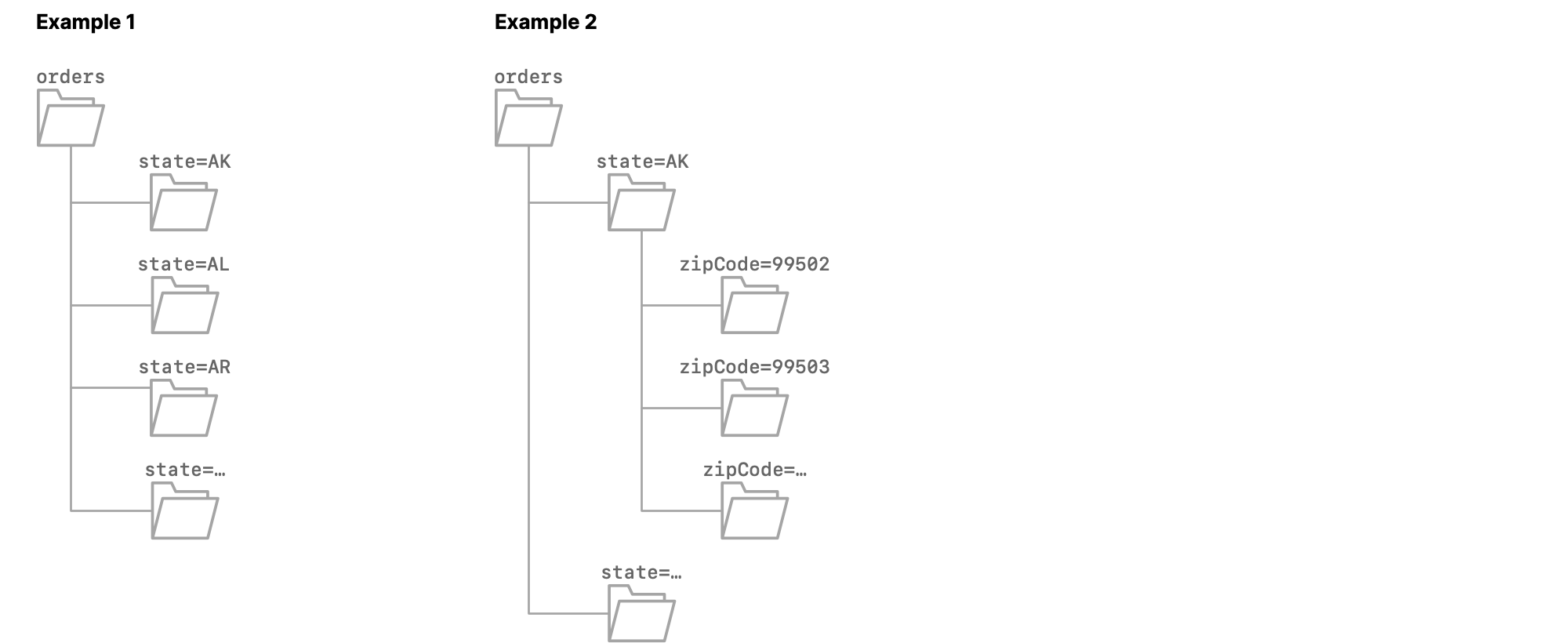
The dataset orders is partitioned on the column state. Each subfolder is named state=<abbreviation>, where <abbreviation> is the two-letter abbreviation of the name of a US state.
When you format orders as a table, all of the columns from the Parquet files, except state, are included, and Dremio appends the column dir0, which has the data type varchar. The values in that column are state=AK for the rows from the file 0.parquet, state=AL for the rows from the file 1.parquet, state=AR for the rows from the file 2.parquet, and so on.
Example 2
The dataset orders is partitioned on the columns state and zipCode. Each first-level subfolder is named state=<abbreviation>, where <abbreviation> is the two-letter abbreviation of the name of a US state. Each second-level subfolder is named zipCode=<zip code>.
When you format orders as a table, all of the columns from the Parquet files, except state and zipCode, are included, and Dremio appends the columns dir0 and dir1, which both have the data type varchar.
The values in dir0 are state=AK for all rows in which the value in dir1 is zipCode=<zip code in AK>, state=AL for all rows in which the value in dir1 is zipCode=<zip code in AL>, and so on.
The values in dir1 are zipCode=99502 for the rows from 0.parquet, zipCode=99503 for the rows from 1.parquet, and so on.
Partition Inference
Using Enable partition column inference, Dremio also detects the name of the partition column, appends a column that uses that name, detects values in the names of subfolders, and uses those values in the appended column.
Appended columns use the varchar data type.
Enable Partition Column Inference
To enable column inference, activate Enable partition column inference in the Advanced Options of your connection.
- In the Dremio Console under Connections, right-click the connection and select Settings.
- Select Advanced Options.
- Select Enable partition column inference.
- Click Save.
For additional detail, see Amazon S3 or Azure Storage.
When you enable partition column inference, any pre-existing tables from the connection or changes in the source partition schema will require a metadata refresh with the following commands:
SQL ALTER commands to forget and refresh metadataALTER TABLE <dataset_path> FORGET METADATA
ALTER TABLE <dataset_path> REFRESH METADATA
Requirements
Ensure that the names of your subfolders meet these requirements:
- Names must be in the format
column_name=<column_value>.column_name=is a valid input. - Names must meet Dremio's naming conventions for columns.
- Names must be unique within and across directory levels.
- Names must not be present in data files.
- All Parquet files in the dataset must be in leaf subfolders.
Examples
Example 1
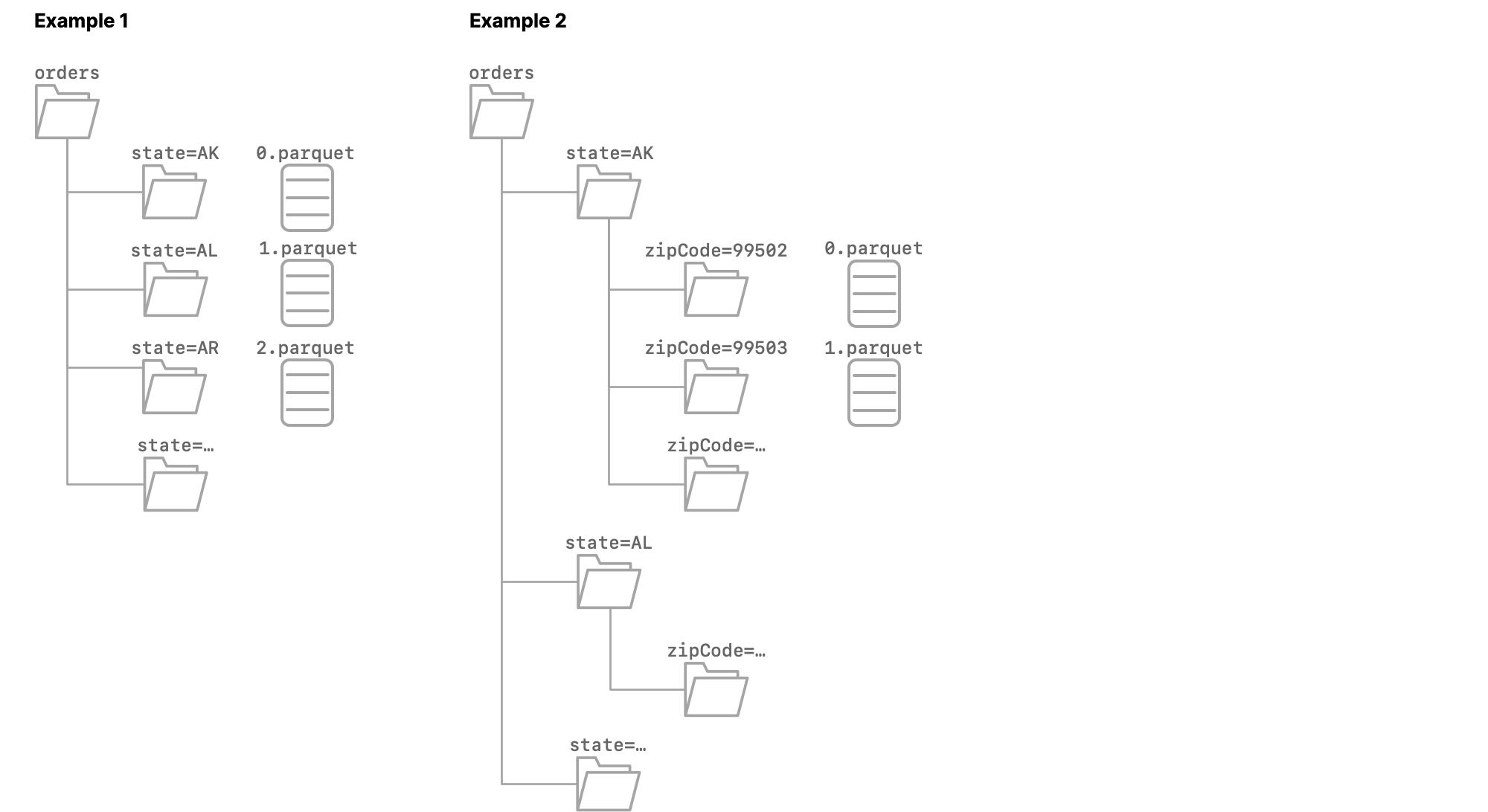
The dataset orders is partitioned on the column state. Each subfolder is named state=<abbreviation>, where <abbreviation> is the two-letter abbreviation of the name of a US state.
When you format orders as a table, all of the columns from the Parquet files are included, and Dremio appends the columns dir0 and state, both of which use the varchar data type.
The values in dir0 are state=AK for the rows from the file 0.parquet, state=AL for the rows from the file 1.parquet, state=AR for the rows from the file 2.parquet, and so on.
The values in state are AK for the rows from the file 0.parquet, AL for the rows from the file 1.parquet, AR for the rows from the file 2.parquet, and so on.
Example 2
The dataset orders is partitioned on the columns state and zipCode. Each first-level subfolder is named state=<abbreviation>, where <abbreviation> is the two-letter abbreviation of the name of a US state. Each second-level subfolder is named zipCode=<zip code>.
When you format orders as a table, all of the columns from the Parquet files are included, and Dremio appends the columns dir0, dir1, state, and zipCode, all of which use the varchar data type.
The values in dir0 are state=AK for all rows in which the value in dir1 is zipCode=<zip code in AK>, state=AL for all rows in which the value in dir1 is zipCode=<zip code in AL>, and so on.
The values in dir1 are zipCode=99502 for the rows from 0.parquet, zipCode=99503 for the rows from 1.parquet, and so on.
The values in state are AK for all rows in which the value in zipCode is <zip code in AK>, AL for all rows in which the value in zipCode is <zip code in AL>, and so on.
The values in zipCode are 99502 for the rows from 0.parquet, 99503 for the rows from 1.parquet, and so on.
How Dremio Handles Existing Tables
When you enable Enable partition column inference, any pre-existing tables remain unchanged until you run a Dremio ALTER TABLE command sequence on each table.
ALTER TABLE path.to.orders FORGET METADATA
ALTER TABLE path.to.orders REFRESH METADATA
For example, before you enable Enable partition column inference, your orders table might have these columns:
| orderID | multiple columns | dir0 |
|---|---|---|
| 000001 | ... | state=CA |
| 000002 | ... | state=WA |
After you enable the Enable partition column inference option, the columns in the table remain the same. After running the SQL commands for forget and refresh metadata, Dremio adds the column state:
| orderID | multiple columns | dir0 | state |
|---|---|---|---|
| 000001 | ... | state=CA | CA |
| 000002 | ... | state=WA | WA |
Because Dremio appends the new column, any views that are defined on the table and that use the dir0 column are still valid. When you define new views, you can use the appended column.
Any changes in the source partition schema will also require a metadata refresh with the ALTER TABLE FORGET METADATA and ALTER TABLE REFRESH METADATA commands above.
Enable Automatic Data Format
You can configure a connection to automatically format data into tables before the first query.
To configure data to be automatically formatted for new tables, select Automatically format files into tables when users issue queries:
- In the Dremio Console under Connections, right-click the connection and select Settings.
- Select Metadata.
- Select Automatically format files into tables when users issue queries.
- Click Save.
For additional detail, see Amazon S3 or Azure Storage.
Remove Data Format
Removing the formatting on a table will revert the table to the folder or file format that it was originally in. Removing the formatting is not supported for tables in an Open Catalog.
To remove the formatting on data:
- On the Datasets page, locate the table for which you want to remove formatting.
- Hover over the table for which you want to remove formatting. Click the
 button and select Remove Format.
 - In the Remove Format dialog, confirm that you want to remove formatting for the selected dataset. Any views that have been created from this table will be disconnected from the parent.
Time Zone Support
Dremio does not apply any conversions to the TIME or TIMESTAMP entries in the data. Dremio retrieves the time or timestamp value with the assumption that the time zone is in Coordinated Universal Time (UTC).
Time Zone Limitation
For JSON files where the time zone for the time or timestamp values is not in UTC time, Dremio assumes and processes the values as in UTC time. For such files, we recommend that you convert these values to the UTC time zone before using them in Dremio.
Related Topics
- Apache Iceberg - Open table format designed for petabyte-scale analytics.
- Delta Lake - Open-source storage framework that brings reliability and performance to data lakes.
- Parquet - Columnar storage format.