Quick Tour of the Dremio Console
This quick tour introduces you to the main areas of the Dremio console, including the AI agent, Open Catalog, and SQL Runner. You'll learn how to navigate the interface and access key features of your agentic lakehouse.
Console Navigation
The Dremio console has a top navigation bar and a side navigation bar. The top navigation bar provides access to the project name and semantic search. The side navigation bar provides links to key areas of the Dremio console.
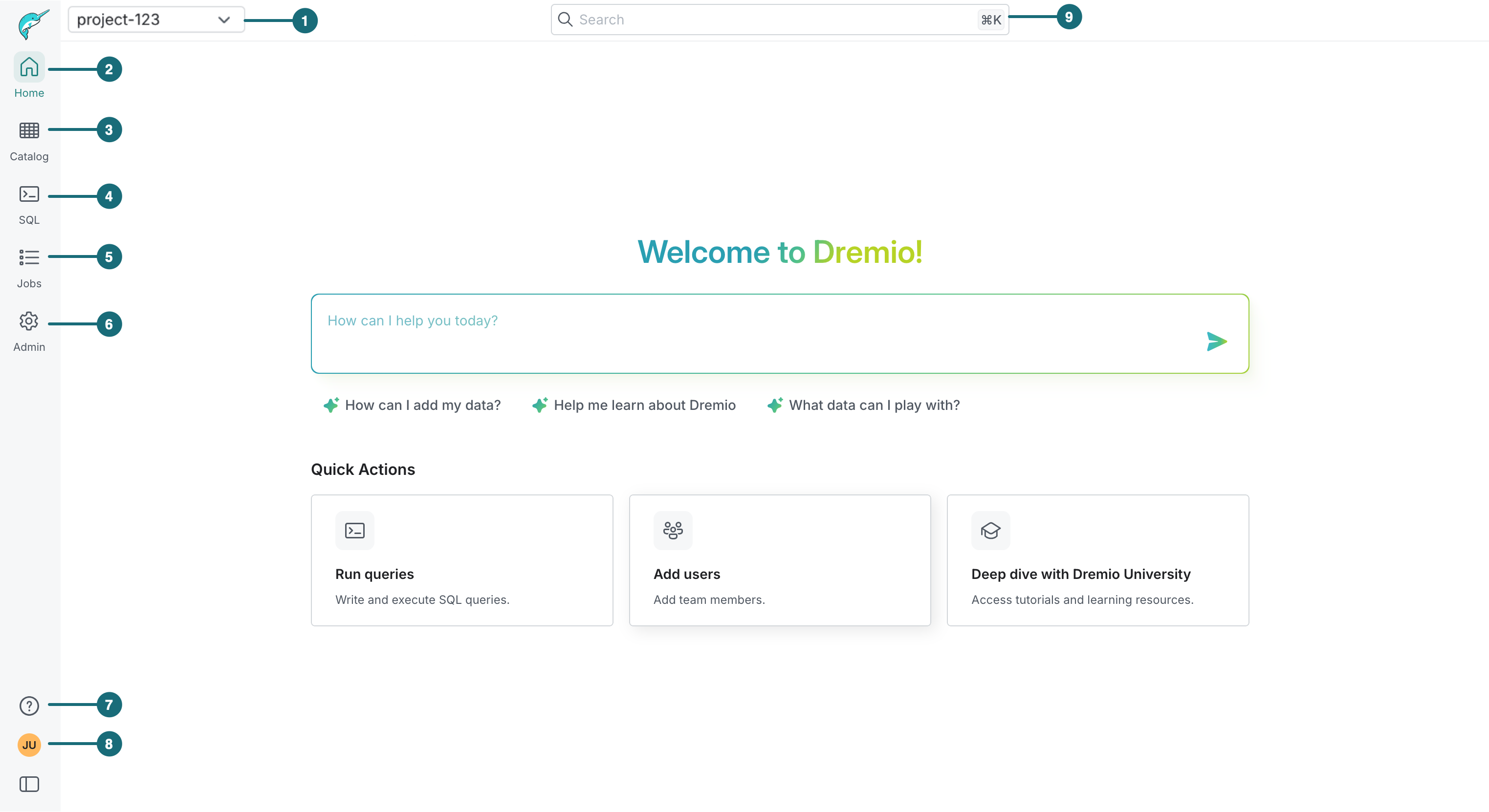
| Location | Description |
|---|---|
| 1 | Project Name: Name of the current project being explored. |
| 2 | Home: Central landing page when you log in. |
| 3 | Open Catalog: Interface for exploring tables and views across the default Open Catalog, other catalogs, object storage, and database sources. |
| 4 | SQL Runner: Editor for constructing and querying data. |
| 5 | Jobs: History of executed SQL and job details. |
| 6 | Admin: Configure and manage your project and organization. |
| 7 | Help Center: Access point for documentation, the Community Forum, and the Support Portal. |
| 8 | Account Settings: Section for managing general information, personal access tokens, appearance preferences, and logout options. |
| 9 | Semantic Search: AI-enabled search for finding objects and entities across your data catalog. Click the search bar on the top of the page and type in your search criteria. For more information, see Search for Dremio Objects and Entities. |
AI Agent
Dremio's AI agent is a conversational interface for exploring, analyzing, and visualizing your data using natural language. On the Home page, type a question into the chat to get started, such as Which tables or views have customer location data?
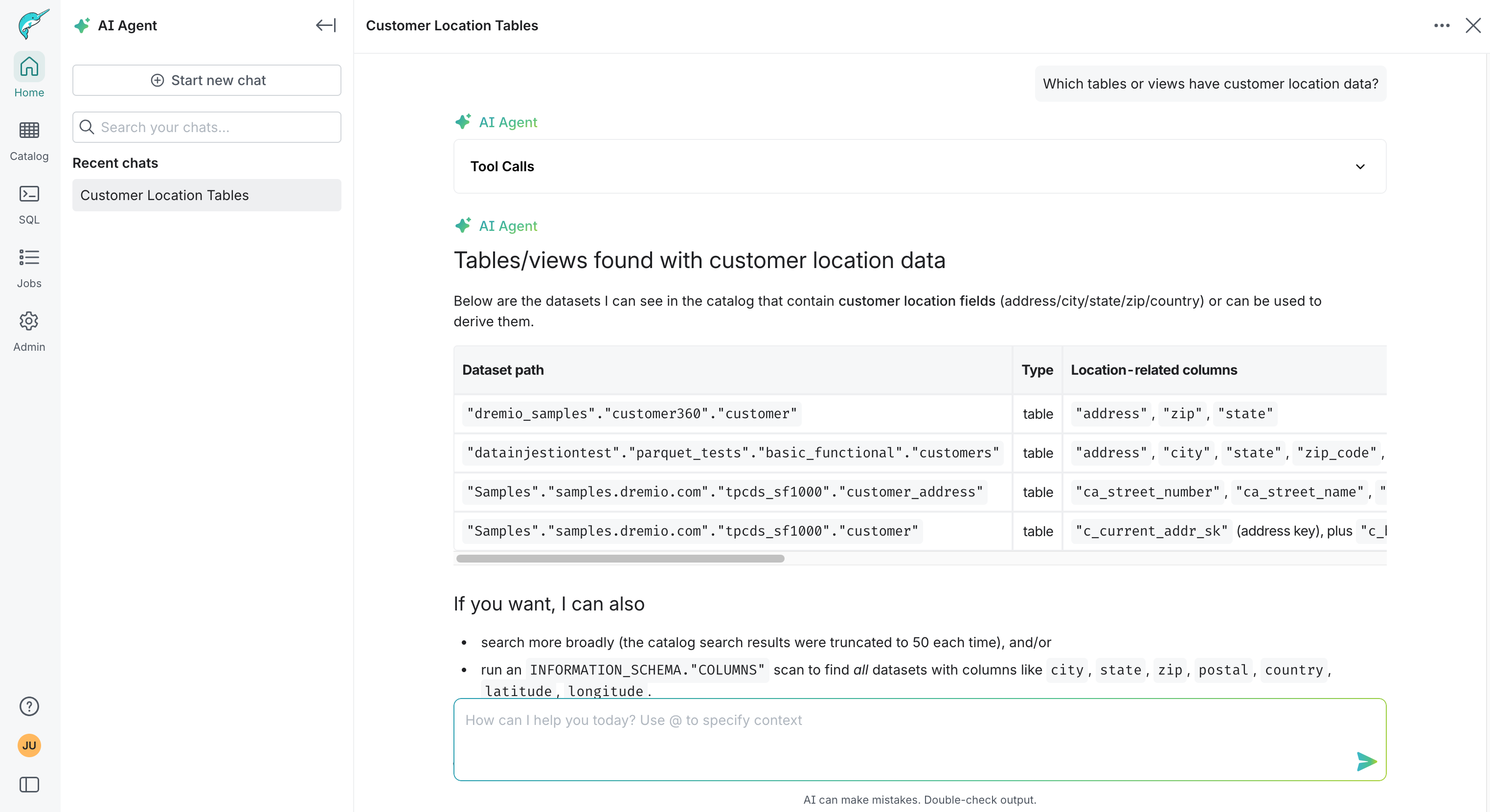
For more information, see Analyze Using Dremio's AI Agent.
Open Catalog
The Open Catalog page provides navigation and management for data in your Open Catalog, other catalogs, object stores, and databases. Access via  in the side navigation bar.
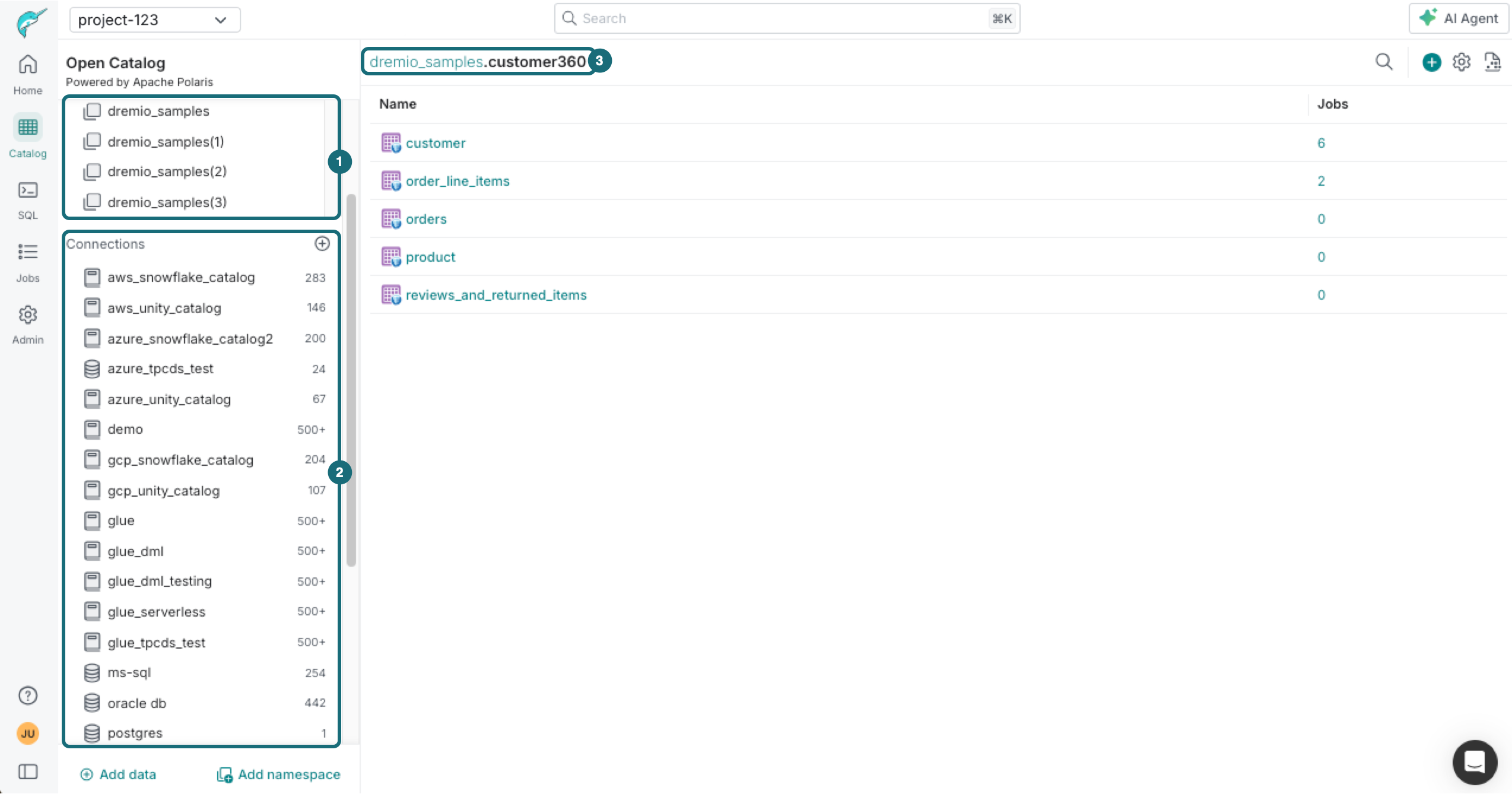
| Location | Description |
|---|---|
| 1 | Spaces: Logical containers that organize data objects within Dremio's Open Catalog, providing hierarchical organization and access control for tables, views, and folders. |
| 2 | Connections: Self-hosted catalogs, object stores, and databases. |
| 3 | Path: Dot-separated identifier indicating the location of the object, starting with the source or catalog name, followed by any folders, and ending with the name of the table or view. |
SQL Runner
The SQL Runner provides a query editor for running SQL. Access via  in the side navigation bar.
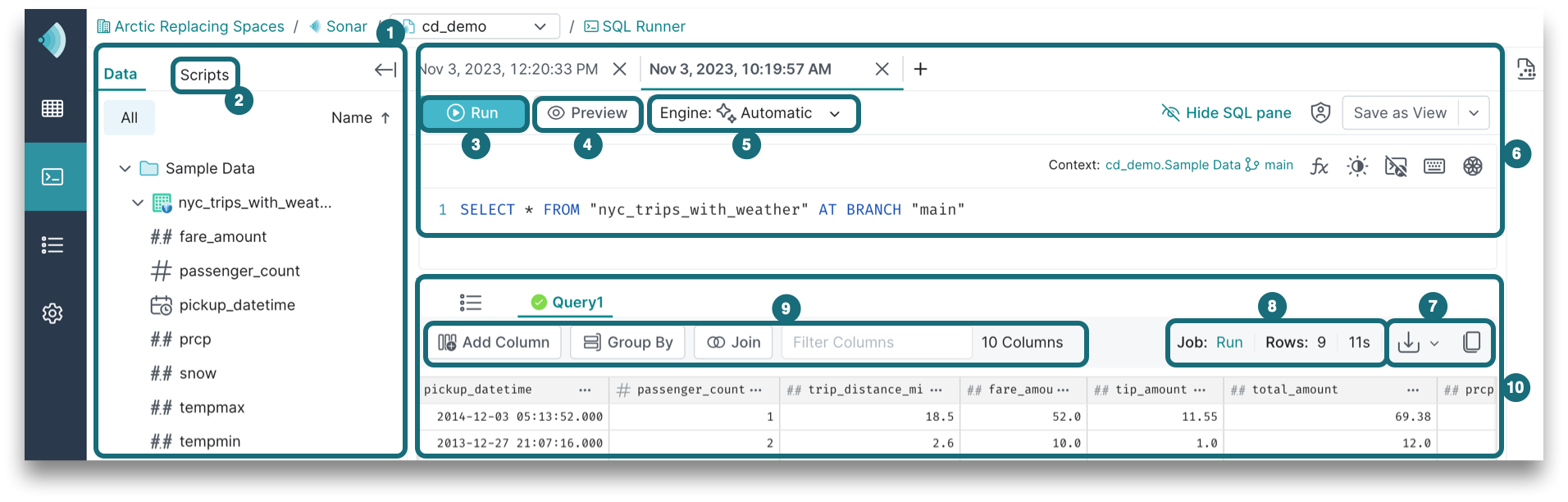
| Location | Description |
|---|---|
| 1 | Data Panel: Area for exploring data across your Open Catalog, other catalogs, object stores, and databases, with drag-and-drop support for adding objects into the SQL editor. |
| 2 | Scripts Panel: Panel for saved SQL scripts that can be reused and shared with other users in your organization. Each script includes creation/modification timestamps and editor context and requires VIEW privileges. |
| 3 | Run: Execution of the SQL, which returns the complete result set. |
| 4 | Preview: Option for previewing a limited set of results based on sampling the underlying data, which is returned faster than a full run. Depending on how the data is sampled, the preview results might not match the full result set. |
| 5 | Engine: Dropdown menu for selecting an engine for SQL execution. By default, Automatic is selected, which routes the query to the appropriate engine based on engine routing rules. For more details, see Manage Engines. |
| 6 | Query Tabs: Tabs for managing multiple query sessions, each with its own SQL editor and results. |
| 7 | Query Name: Name of the current query tab, which can be edited to help organize your work. |
| 8 | Results Panel: Table displaying the results of your query with options to download, copy, or edit values. |
| 9 | Columns: Column count and filter options for the results panel. |
| 10 | Execution State: Indicator displaying the job status, record count, and execution time, with a link to view full job details. Includes options to download results as JSON, CSV, or Parquet files, or copy data to the clipboard. |
| 11 | Details Panel: Right-side panel for viewing and managing dataset metadata, including columns, ownership, searchable labels, and wiki content. |
Explain SQL
In the SQL Runner, you can ask the AI agent to analyze and optimize your queries. To use this option, highlight your SQL, right-click, and select Explain SQL from the dropdown.
Limitations and Considerations
Row Limit: SELECT query results are limited to one million rows and may be truncated based on thread distribution. When truncated, a warning appears. To obtain complete results, use JDBC or ODBC drivers.
CSV Download: CSV download is unavailable for result sets with complex data types (union, map, array). The download and copy results options can be enabled or disabled for a specific project by navigating to Admin > Project > Preferences.
Related Topics
- Add Your Data – Load, connect, and prepare your data.
- Explore and Analyze Your Data – Use the AI agent, SQL Runner, and client apps to query and visualize your data.